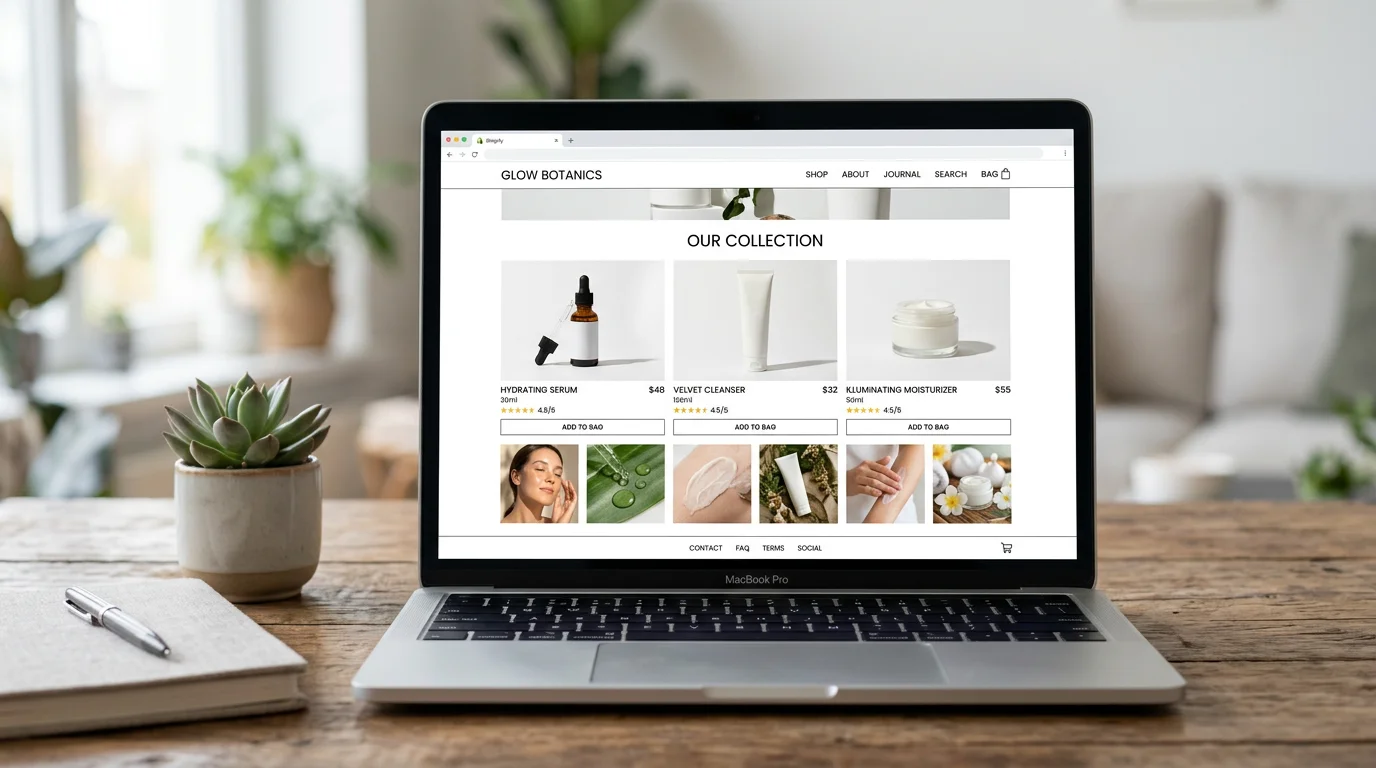
Shopify Product Photography: The Complete 2026 Guide
Your product photos are doing more selling than any headline or bullet point on your Shopify store. Shoppers cannot touch, smell, or try on what you sell — your images are the product experience. Get them right and conversions climb. Get them wrong and browsers keep scrolling.
This guide is for Shopify store owners and DTC brands who want professional-grade product images without a $2,000 photography bill every time they launch a new SKU. You will learn the exact specs Shopify requires, how many images per product actually move the needle, which image types to prioritize, and how to produce all of them with FlowPic in 60 seconds per product.
Why Product Photography Directly Affects Your Revenue
The connection between product images and conversion rate is not theoretical — it is backed by consistent data across thousands of Shopify stores. According to research from Justuno, 93% of consumers consider visual appearance the key deciding factor in a purchasing decision. MDG Advertising found that content with compelling images gets 94% more views than content without.
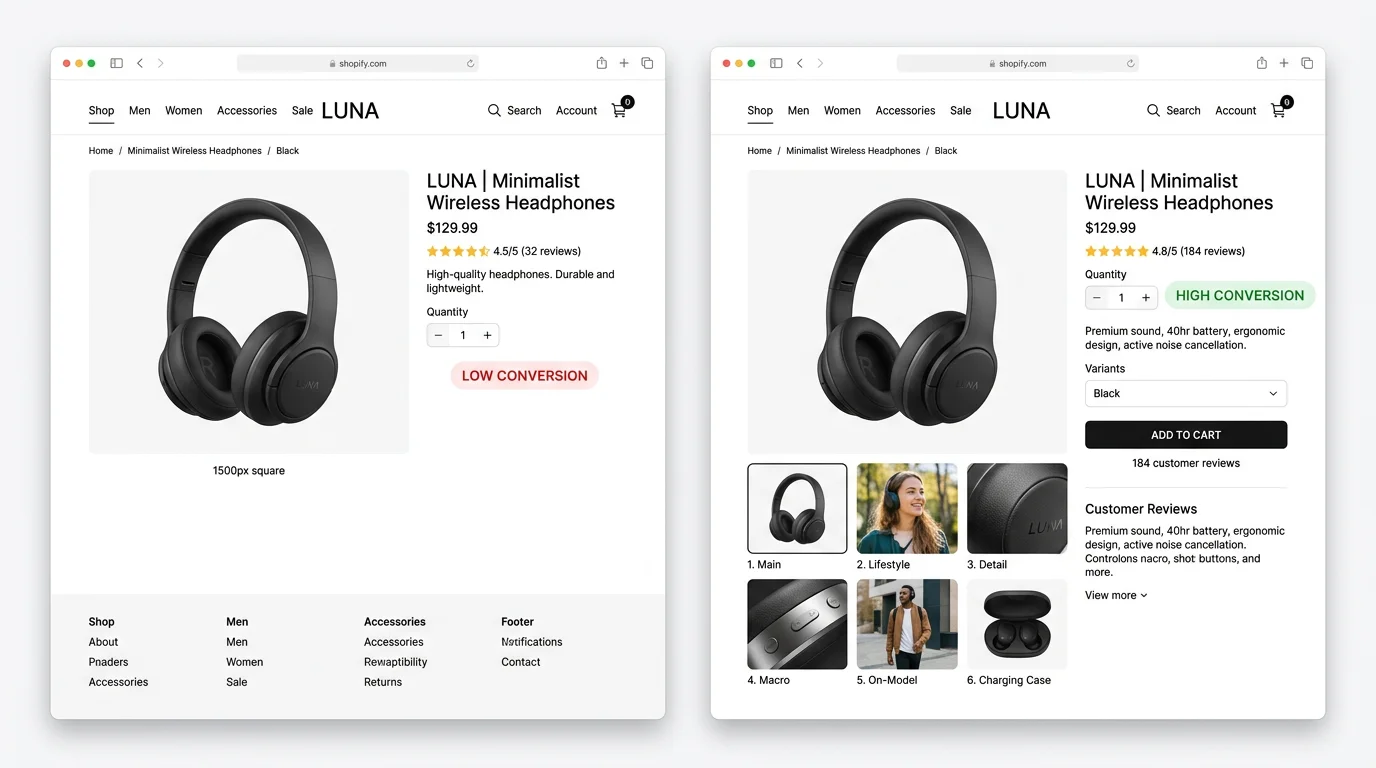
For Shopify specifically, the impact is measurable at the product level. Adding a second image to a product listing that previously had only one can lift its conversion rate by 2–5%. Adding a lifestyle image on top of the clean-background main shot adds another meaningful jump. By the time a product listing reaches 6–8 high-quality images covering different angles and contexts, it consistently outperforms single-image listings by 30–40% in head-to-head A/B tests run by Shopify Plus merchants.
The implication is clear: investing in photography is not a vanity expense. It is one of the highest-ROI changes you can make to your store without touching your ad spend or changing your price.
Shopify Image Specs: What You Actually Need
Shopify is permissive about image uploads, but "technically accepted" and "optimally configured" are two different things. Here are the specifications that matter for display quality, page speed, and SEO.
| Spec | Shopify Minimum | Recommended | Why It Matters |
|---|---|---|---|
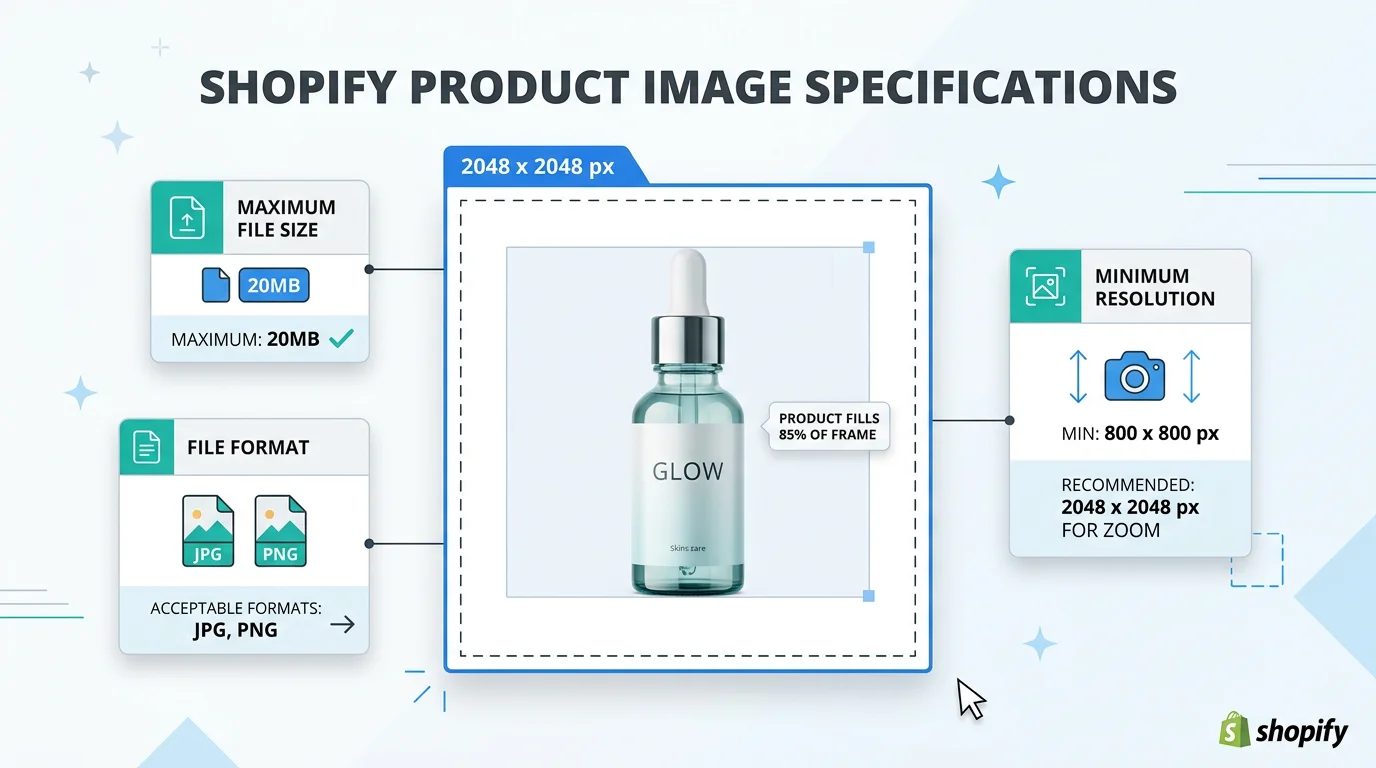
| Dimensions | No minimum enforced | 2048 × 2048 px | Enables zoom without pixelation; required for high-DPI screens |
| Aspect ratio | Any | 1:1 (square) | Prevents cropping in Shopify collection grids across all themes |
| File format | JPG, PNG, GIF, WEBP | JPG (photos), PNG (transparent bg) | JPG keeps file size small; PNG preserves transparency |
| File size | Up to 20 MB | Under 500 KB after compression | Page speed is a direct ranking factor; large images tank Core Web Vitals |
| Color profile | Any | sRGB | Consistent color rendering across browsers and devices |
| Resolution (DPI) | Not applicable for web | 72 DPI (screen) | Print DPI settings do not affect web display quality |
The most important spec for most merchants is the 2048 × 2048 px square. Shopify's built-in image zoom feature activates at this resolution, giving shoppers the ability to inspect product details — which is particularly important for apparel, jewelry, and cosmetics. Anything smaller and the zoom feature either does not activate or produces a blurry result.
File size is the second most impactful spec. A 4 MB product image will noticeably slow your product pages, which hurts both your Google ranking and your bounce rate. Run every image through a compressor like Squoosh or use a Shopify app like Crush.pics to automate compression without visible quality loss.
How Many Images Per Product on Shopify?
The honest answer: as many as you can produce that show genuinely different information. But there is a practical conversion-optimized range.
The absolute minimum is 2 images per product: a clean main shot and one lifestyle or contextual image. A single image forces shoppers to make a purchase decision with almost no visual context. Adding even one second image reduces return rates and increases conversions in most categories.
The high-converting target is 5–8 images per product. Here is how conversion impact stacks as you add images:
- Image 1 (main, clean background): Baseline. Without this your product cannot be listed.
- Image 2 (lifestyle or in-use): +2–5% conversion lift over single-image listings on average.
- Image 3 (detail or macro shot): +2–4% additional lift, particularly high-impact for products where texture, material, or craftsmanship is a selling point.
- Image 4 (on-model or scale shot): +3–6% lift for apparel, accessories, home goods — any product where size or fit is ambiguous.
- Image 5 (UGC-style or social proof shot): +2–4% lift by making the product feel more real and attainable than polished studio work alone.
- Images 6–8 (additional angles, color variants, packaging): Incremental lifts of 1–3% each; diminishing returns set in after 8 images for most product categories.
For a catalog with hundreds of SKUs, producing 5–8 studio-quality images per product through traditional photography would cost tens of thousands of dollars per season. That is where AI-generated product photography changes the economics completely.
The 5 Image Types Every Shopify Product Needs
Not all product images serve the same purpose. A main shot and a lifestyle shot are doing entirely different jobs in the buying journey. Here is a breakdown of each image type, why it matters, and which FlowPic output to use to generate it.
| Image Type | Purpose | Where It Appears | FlowPic Output Type |
|---|---|---|---|
| Main (clean background) | Establish the product clearly; used for collection grid thumbnail | Collection pages, ads, marketplaces | White / Clean Background |
| Lifestyle | Show the product in its natural use environment; build desire | Product gallery, social ads, email | Lifestyle Scene |
| Detail / Macro | Highlight texture, material quality, craftsmanship, or fine print | Product gallery (positions 3–4) | White / Clean Background (cropped tight) |
| On-Model | Communicate fit, scale, and wearability for apparel and accessories | Product gallery, influencer-style ads | On-Model Shot |
| UGC-Style | Build social proof; make the product feel authentic and real-world tested | Product gallery, TikTok/Instagram ads | UGC-Style |
Most Shopify merchants focus almost entirely on the main clean-background shot and neglect the remaining four types. This is a missed opportunity. Shoppers who view a lifestyle image spend 40% more time on the product page on average, according to data from BigCommerce. On-model images reduce apparel return rates by up to 20% because shoppers have a more accurate expectation of fit before they buy.
The good news: you do not need a different photoshoot for each image type. With FlowPic you upload your existing product photo once and generate all five image types from the same source file.
Shopify Theme Considerations: Why Square Is Always Safe
Shopify's theme ecosystem covers hundreds of themes — from the free Dawn template to premium options like Prestige, Impulse, and Pipeline. Each theme handles image display slightly differently, and this has real consequences for how your product photos look in the collection grid.
The core issue is aspect ratio enforcement. Many Shopify themes crop images in collection grids to maintain a consistent visual grid layout. If your images are portrait (taller than wide) or landscape (wider than tall), the theme will crop them — often cutting off important product content at the top, bottom, or sides.
Specific theme behaviors to know:
- Dawn (Shopify default): Crops to a configurable aspect ratio in the theme editor. Defaults to portrait (4:5). If you upload square images, they display correctly but with small top/bottom white margins.
- Prestige and Impulse: Force a consistent ratio across the collection grid — usually 4:5 or 1:1 depending on settings. Non-matching images get cropped automatically.
- Pipeline and Warehouse: Allow natural image ratios but create an inconsistent grid when images are mixed sizes — which looks unprofessional.
- Custom themes: Behavior varies; test any new image format in your actual theme before committing to it for your entire catalog.
The safest universal choice is 2048 × 2048 px square (1:1). A square image will display correctly in every Shopify theme, either perfectly framed or with neutral white or gray padding at the edges. It will never get your product cropped out. This is the spec FlowPic uses by default for all generated images.
How to Generate Shopify-Ready Product Photos with FlowPic
FlowPic removes the production overhead from product photography entirely. Instead of booking a studio, coordinating a photographer, waiting a week for edits, and paying a four-figure invoice, you upload your product photo and receive studio-quality images in 60 seconds.
Here is the full workflow from upload to Shopify:
Step 1: Upload Your Product Photo
Go to flowpic.app and upload any photo of your product. This can be a photo taken on your phone, a supplier sample image, or an existing product photo. FlowPic's AI isolates the product from whatever background is in the original image — no pre-editing or background removal required on your end.
Step 2: Select Your Output Types
Choose which image types you want to generate: white/clean background, lifestyle scene, on-model, UGC-style, or product video ad. You can generate all five types from a single upload. For each type you can specify details — for lifestyle scenes, you can choose the setting (kitchen counter, desk, outdoor, etc.). For on-model shots, you can specify model attributes to match your target customer.
Step 3: Review and Regenerate
FlowPic returns a set of generated images in under 60 seconds. Review them directly in the platform. If a particular output does not match your vision, regenerate with adjusted prompts — no additional upload required. Iteration is fast and the cost per image is $0.15, so experimenting with a few rounds to nail a look is still cheaper than a single hour of studio time.
Step 4: Download in Shopify-Ready Specs
Download your images in 2048 × 2048 px square format, sRGB color profile, with compression applied for web delivery. The files are ready to upload directly to Shopify without any additional editing. For white-background images, the output is a clean JPG. For transparent-background versions suitable for overlaying on custom store layouts, PNG output is available.
Step 5: Upload to Shopify and Add Alt Text
Upload the images to your Shopify product listing via the product editor. Drag to reorder so your clean main shot appears first (it becomes the collection grid thumbnail), followed by lifestyle, detail, on-model, and UGC-style images in that order. Add descriptive alt text to each image — this is covered in the best practices section below.
Cost Comparison: Traditional Photography vs. AI
The economics of product photography have changed significantly with AI generation. Here is a realistic breakdown of what Shopify merchants typically spend on traditional photography versus what the same output costs with FlowPic.
Traditional Product Photography Costs
Hiring a product photographer for a Shopify brand typically involves several cost layers:
- Photographer day rate: $500–$2,000 per session, depending on experience and market. A session typically covers 10–20 products.
- Studio rental: $200–$600 per day if the photographer does not have their own studio.
- Prop and set styling: $100–$500 per session for lifestyle setups.
- Post-production editing: $15–$50 per image for background removal, color correction, and retouching.
- Model and wardrobe (for on-model shots): $300–$1,500 for a half-day model booking.
- Turnaround time: 1–2 weeks from shoot to final delivered files.
For a Shopify store launching 20 new products, a realistic traditional photography budget — covering main shots, one lifestyle per product, and on-model shots for apparel SKUs — runs $3,000–$8,000 per collection launch.
FlowPic Costs
- Cost per image: $0.15
- Cost for 5 image types across 20 products: $15.00 total
- Turnaround time: 60 seconds per product; 20 products in under 30 minutes
- Re-shoots for color variants or new angles: $0.15 per additional image
The cost reduction is not marginal — it is 99%+ for most use cases. For a DTC brand doing quarterly catalog refreshes, this translates to tens of thousands of dollars saved annually while maintaining or exceeding the image quality that traditional photography delivers.
Best Practices for a Consistent Shopify Catalog
Even with great individual product images, inconsistent styling across your catalog undermines the professional look of your store. These best practices apply whether you are shooting traditionally or generating with AI.
Maintain Consistent Backgrounds Across Your Catalog
Pick one background treatment for your main product shots and use it across every SKU in your catalog. The most common choices are pure white (#FFFFFF), off-white or light gray (#F5F5F5), or a brand-specific neutral color. Inconsistent backgrounds — some white, some light gray, some with subtle gradients — make your collection grid look like a patchwork of images from different sources, which erodes the premium feel of your brand regardless of how good individual images are.
With FlowPic, you can specify the exact background for your white/clean images and regenerate any older product images to match, making catalog-wide consistency achievable even retroactively.
Add Descriptive Alt Text for Every Image
Alt text serves two functions on Shopify: it makes your store accessible to visually impaired shoppers (required for ADA compliance), and it signals image content to Google Image Search, which drives additional organic traffic. A well-optimized alt text for a product image is descriptive and specific — it names the product, includes relevant attributes, and naturally uses keywords without stuffing.
Good alt text examples:
- Poor: "product image 1"
- Better: "ceramic coffee mug"
- Best: "handmade 12oz ceramic coffee mug in matte black with brushed gold handle"
For lifestyle images, describe the scene and what the product is doing in it: "ceramic coffee mug filled with latte on wooden kitchen counter with morning light."
Use Descriptive File Names Before Uploading
File names are a minor but real SEO signal. Rename image files before uploading to Shopify using a consistent format that includes the product name and image type. Use hyphens between words, not underscores or spaces.
Recommended naming format: [product-name]-[image-type]-[variant].jpg
ceramic-coffee-mug-main-matte-black.jpgceramic-coffee-mug-lifestyle-kitchen.jpgceramic-coffee-mug-detail-handle.jpg
Compress Images Before Uploading
Shopify does apply some automatic image optimization, but it does not fully compensate for uploading oversized files. Run your images through a tool like Squoosh (free, browser-based) or TinyPNG before uploading. Target under 500 KB per image. A 2048 × 2048 px JPG can typically be compressed to 200–400 KB without any visible quality degradation at normal viewing distances.
Page speed directly affects your Google ranking. A product page that loads in under 2.5 seconds (meeting Google's Core Web Vitals LCP threshold) will consistently rank higher and convert better than a slow-loading equivalent.
Maintain a Consistent Image Order Across All Products
Shoppers who browse multiple products in your store learn the visual rhythm of your product pages. If they always see the main shot first, lifestyle second, detail third, and on-model fourth, they know exactly where to look for the information they need. Breaking this pattern on individual products creates friction. Set a standard image order for your catalog and apply it consistently, using Shopify's drag-to-reorder functionality in the product editor.
Frequently Asked Questions
What is the best image size for Shopify product photos?
The recommended size for Shopify product images is 2048 × 2048 pixels in a square (1:1) aspect ratio. This resolution activates Shopify's built-in image zoom feature, displays correctly across all Shopify themes without cropping, and renders sharply on high-DPI displays. Keep file size under 500 KB after compression for optimal page load speed. JPG is the best format for most product photos; use PNG when you need a transparent background.
How many product images should I have on Shopify?
A minimum of 2 images per product — one main shot on a clean background and one lifestyle or contextual image. For high-converting listings, aim for 5–8 images covering the main shot, lifestyle scene, macro/detail, on-model, and a UGC-style image. Each image added past the first can increase conversion rate by 2–5%, with the highest gains coming from the second and third images. Diminishing returns typically set in beyond 8 images for most product categories.
Do Shopify product image specs differ by theme?
Shopify's upload limits (JPG/PNG/GIF/WEBP, up to 20 MB) apply across all themes, but how images are displayed in the collection grid varies by theme. Many themes enforce a fixed aspect ratio in the collection grid and will crop images that do not match. Using 2048 × 2048 px square images is the safest approach — square images display correctly in every Shopify theme without cropping, regardless of the theme's default aspect ratio settings.
Can I use AI-generated photos on my Shopify store?
Yes. AI-generated product images are fully acceptable on Shopify, and there are no platform restrictions against using them. The only consideration is quality — your images need to accurately represent the product. AI product photography tools like FlowPic generate images from your actual product photo rather than fabricating a product from scratch, so the images are accurate representations of the physical item. Thousands of Shopify brands are already using AI-generated product images across their catalogs.
How much does product photography cost for a Shopify store?
Traditional product photography for a Shopify store costs $500–$2,000 per photography session, which typically covers 10–20 products. A full catalog launch with lifestyle, on-model, and detail shots across 20 products can cost $3,000–$8,000. With AI product photography tools like FlowPic, the same output — main shot, lifestyle, on-model, UGC-style, and detail images across 20 products — costs approximately $15 total at $0.15 per image, delivered in under 30 minutes versus the 1–2 week turnaround for traditional photography.
Conclusion
Shopify product photography is one of the highest-leverage investments you can make in your store's conversion rate. The spec to remember is 2048 × 2048 px square, JPG format, compressed under 500 KB. The image count to target is 5–8 per product, covering your main shot, lifestyle scene, detail macro, on-model, and UGC-style. And the best practices — consistent backgrounds, descriptive alt text, and proper file naming — compound over time into a professional, high-trust catalog that outperforms your competitors who are still uploading their supplier's stock photos.
The barrier used to be the cost and logistics of traditional photography. That barrier no longer exists. With FlowPic, you upload your product photo once and have all five image types ready in 60 seconds, in Shopify-ready specs, at $0.15 per image.